
You can create different language versions of a course. Creating these versions give the Locale Manager a way to view all courses available in their assigned language version. It is also a helpful way to quickly find a course in a specific language.
Note: A Locale Manager cannot upload content to a course. Course content uploads are still handled by a Superadmin or by a user who has been granted Administrator access to that course.
To Create Different Language Versions of Each Course:
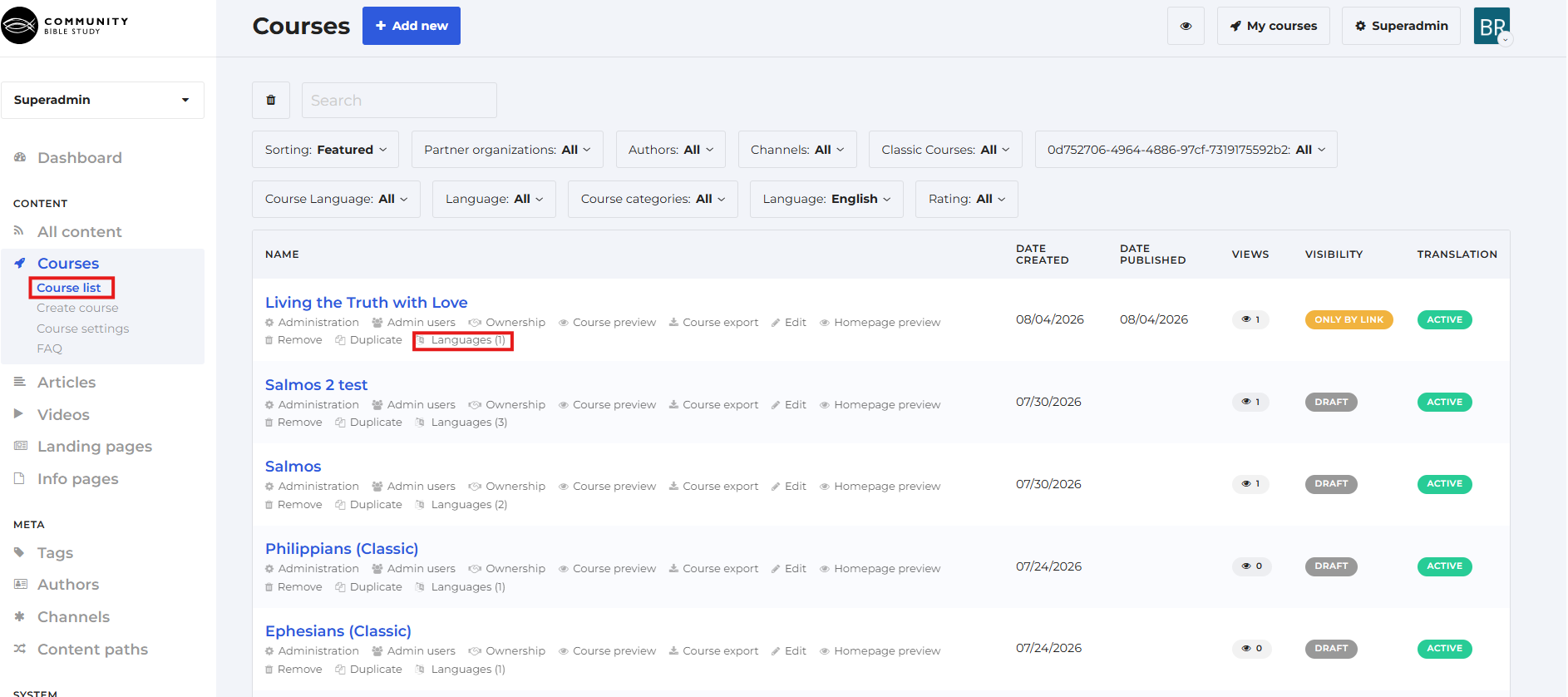
1. From the Dashboard, select Course List in the left-hand menu, then find the course you want to add a new language version to.
Click the Languages option beneath the course.
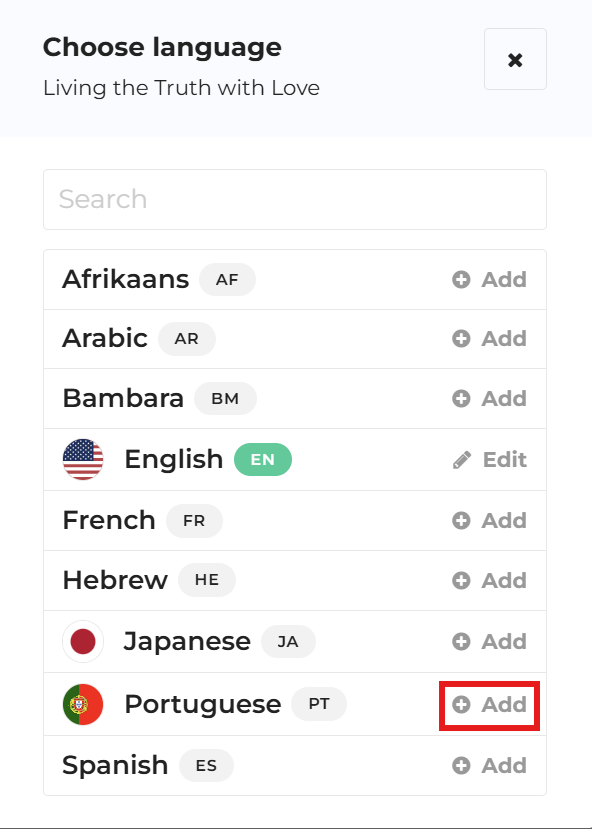
2. A pop-up menu will appear with a list of all the added languages to choose from. Click the Add option across from the language.
3. Choose one of the option boxes for the new course choosing Start from scratch or Copy existing version and click Continue.
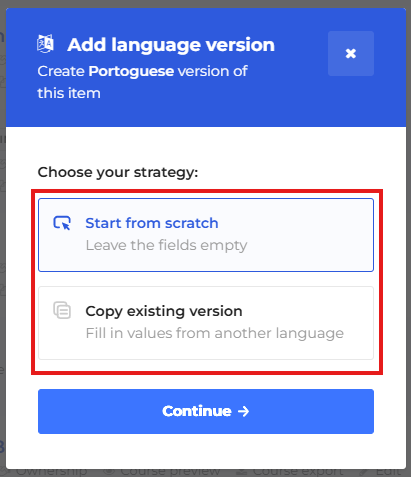 Note: Choose Start from scratch if you want to create a new language version of the course.
4. You will be directed to the Edit course page. Put in the name of the course in the language you’ve selected. Make sure you turn on the Translation active button and then click Save.
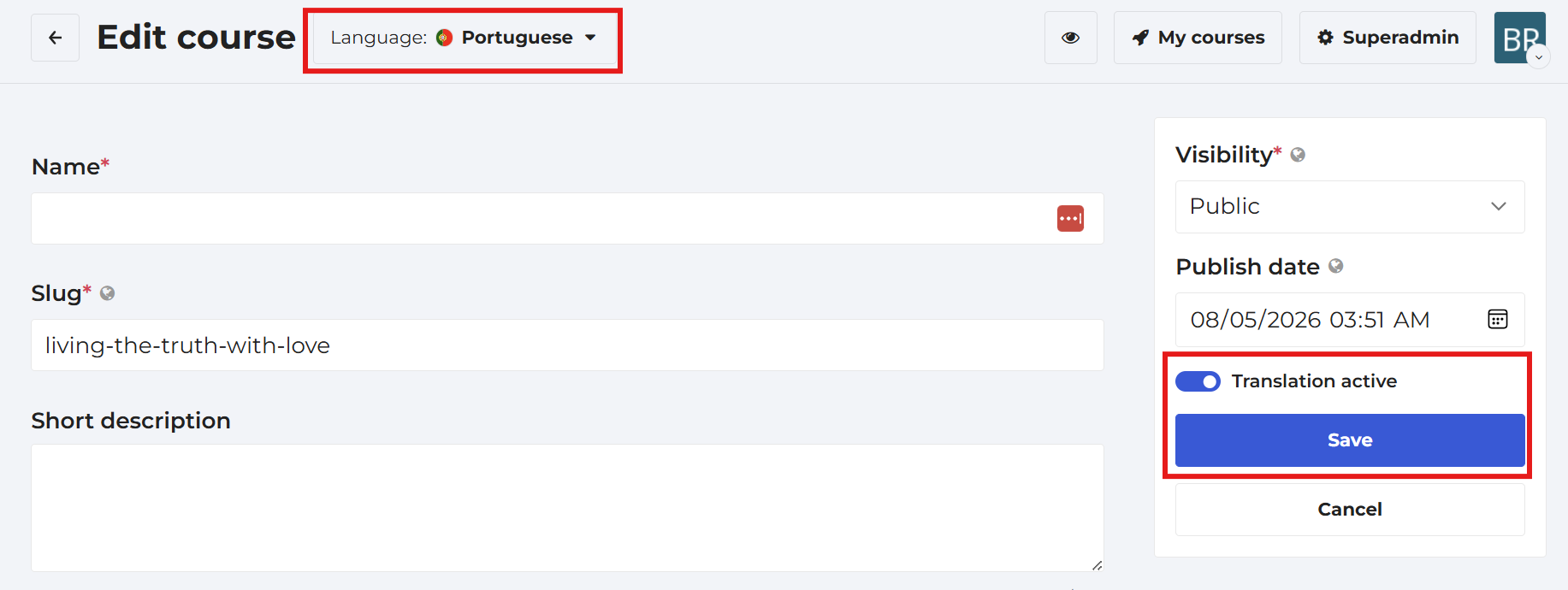 Note: In each course there will be a language menu at the top of the homepage where you can select the version you would like to edit.
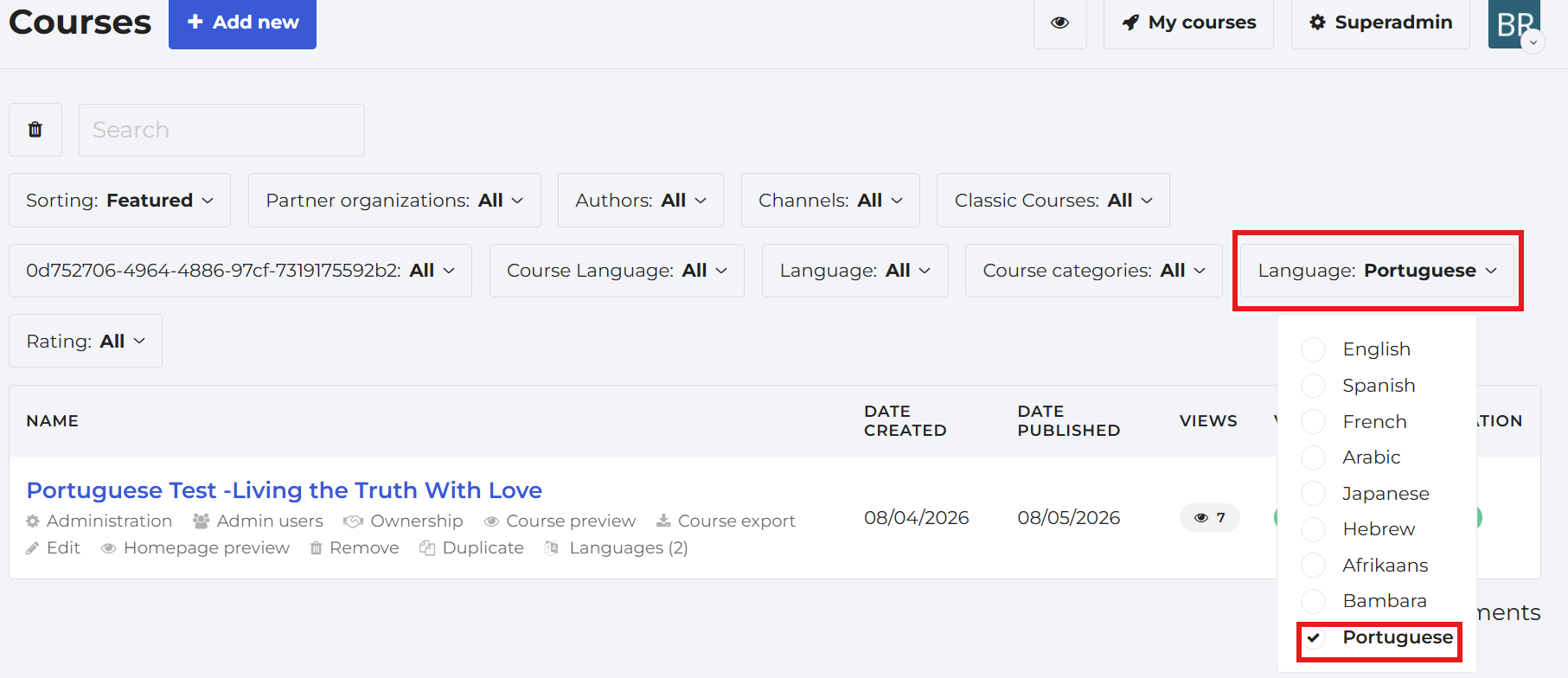
5. Return to the Course list page, click the Language filter at the top, and select the language of the courses you want to view.
Note: Creating language versions does not mean the content of each language version of the course will be fully translated. The contents of the course must still be uploaded.