
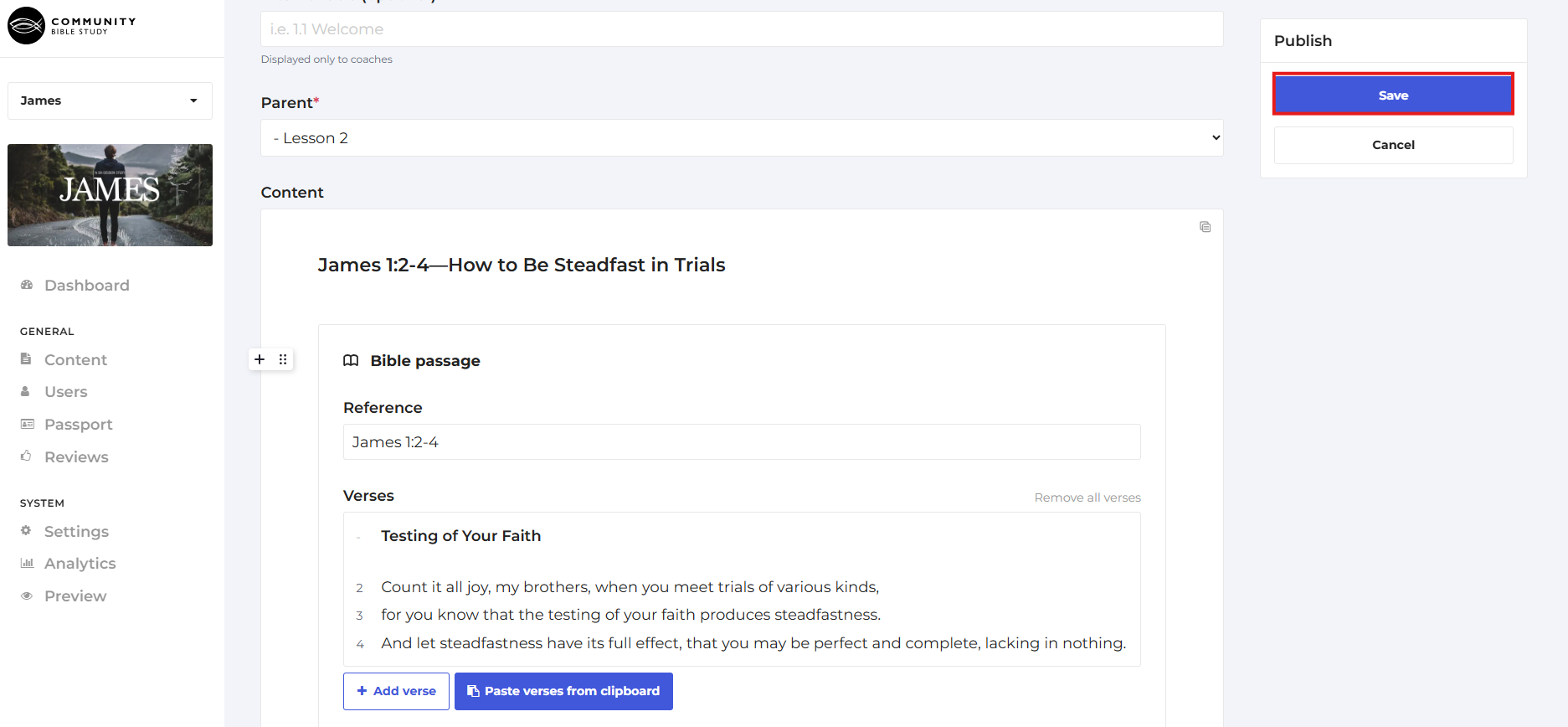
The CBS Connect platform has a Bible Passage block that can be used to manually add scripture passages to slides in a course so that participants can click on the block and view the scripture passage from directly within the CBS Connect platform. This feature allows you to copy text directly from an online Bible website like YouVersion in any language and paste it directly onto the slide in the platform for easy access. The passage shows in a collapsible box on the page that participants can click on to view the verses. See the picture below for an example:
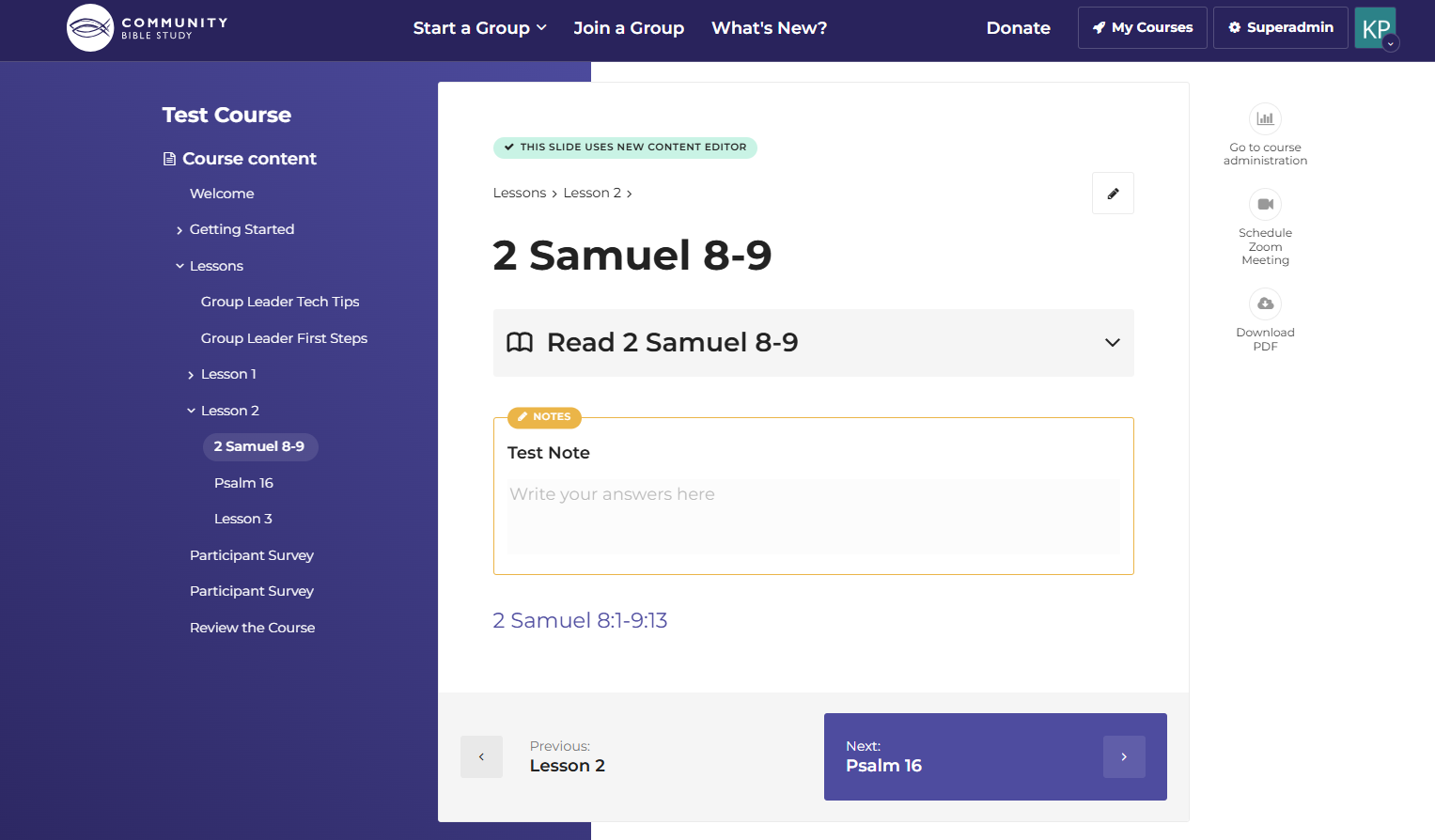
To add a Bible Passage block to a slide in a course:
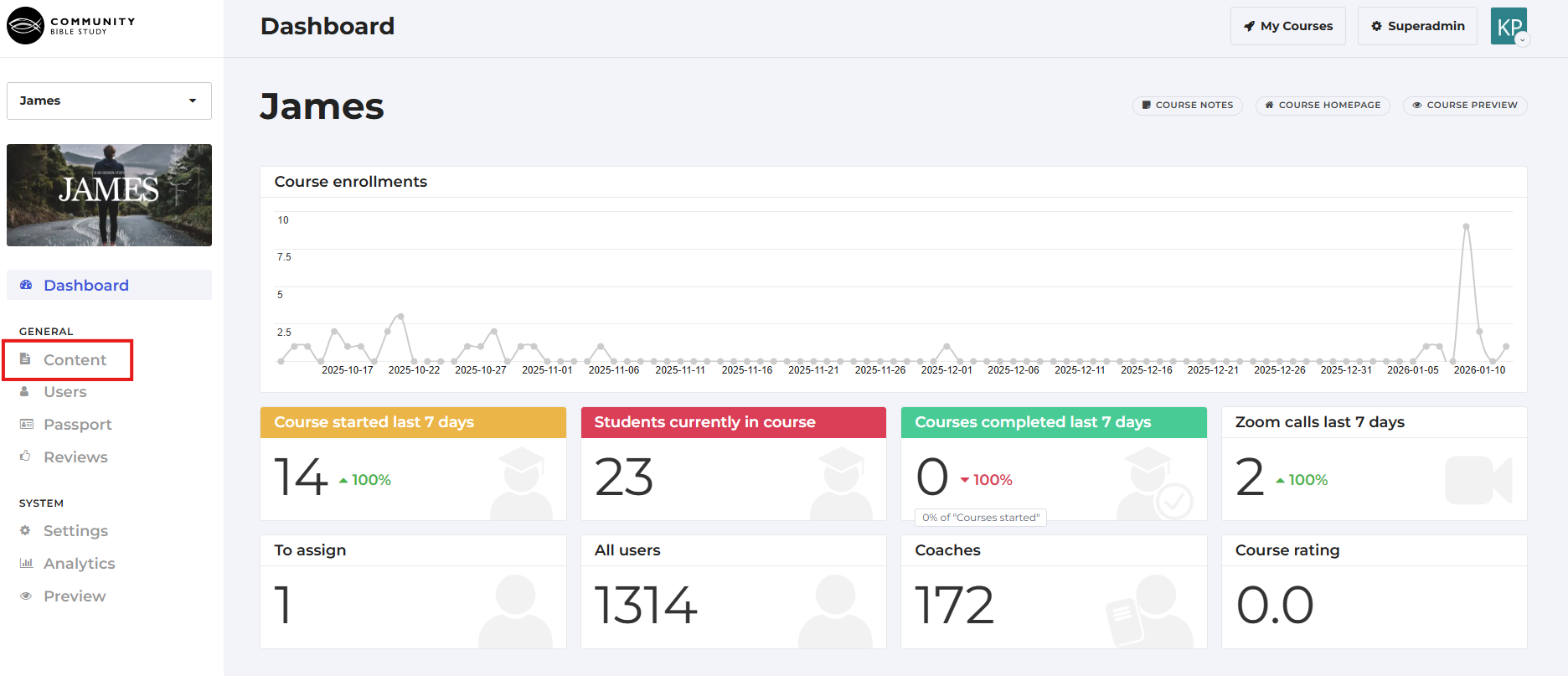
1. Go to the Course Administration page for the course you want to add the passage to and click on Content in the menu on the left side of the page.
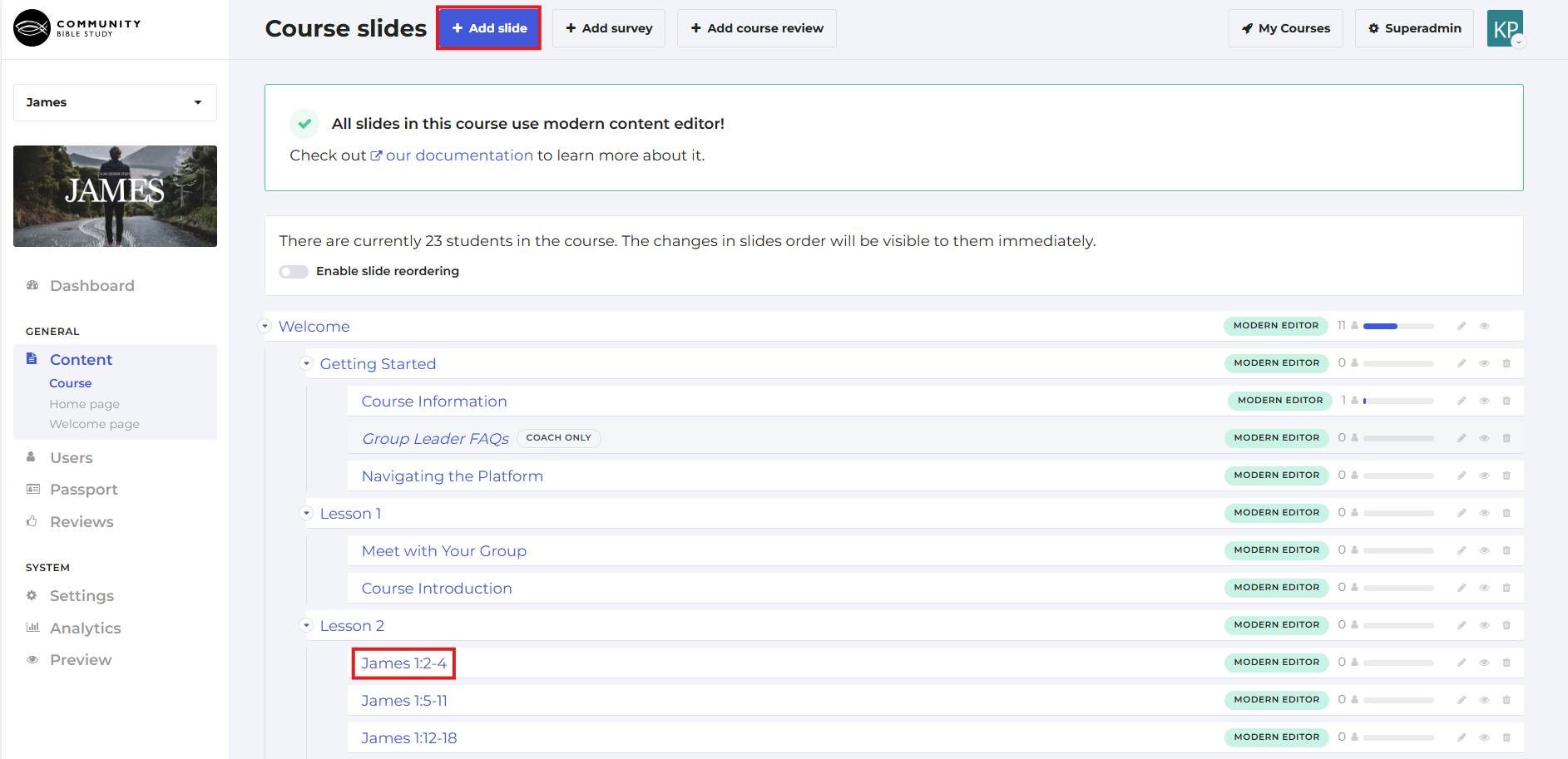
2. Click on the slide you would like to add the passage to from the menu, or create a new slide by clicking on the “Add Slide” button at the top of the page.
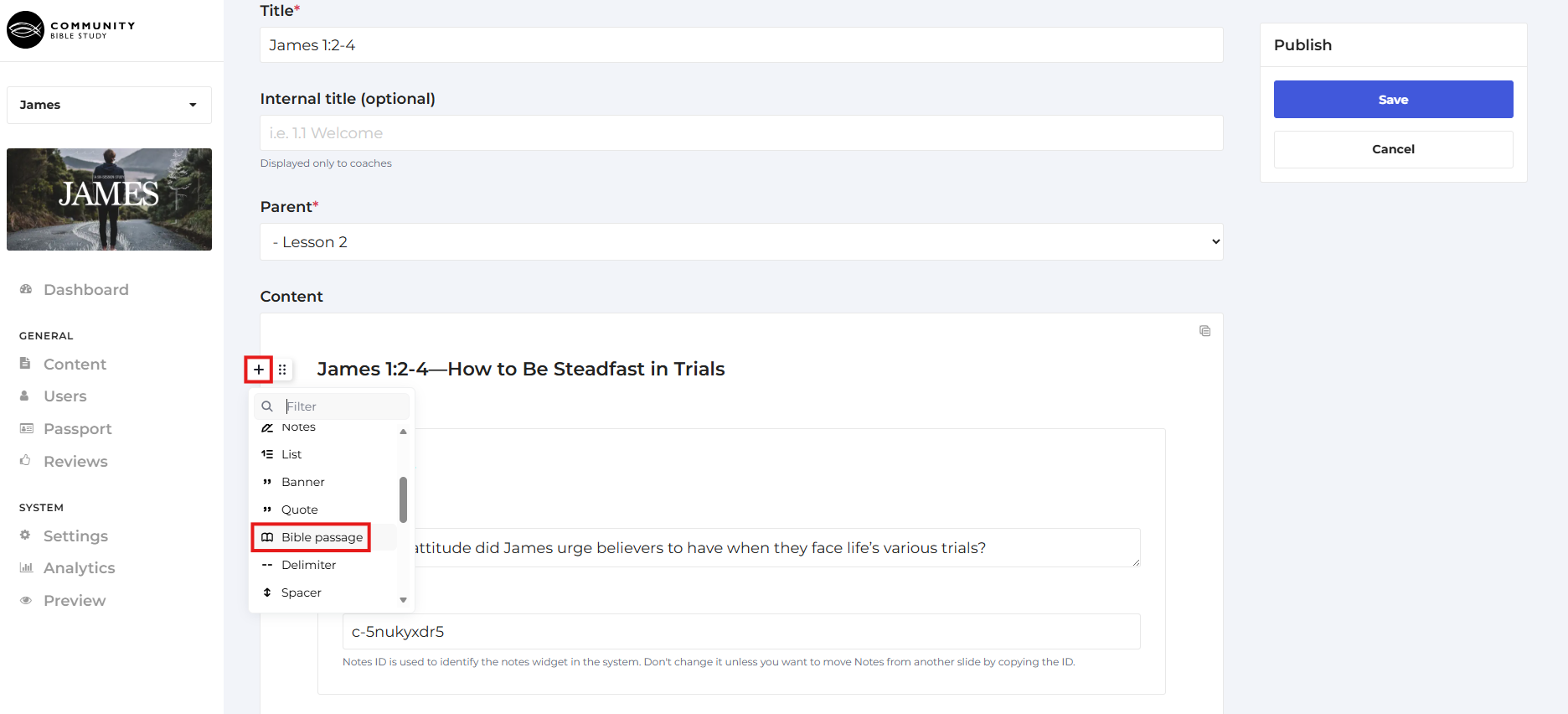
3. Click the Plus icon above where you would like to put the passage and scroll down and click on the Bible Passage block.
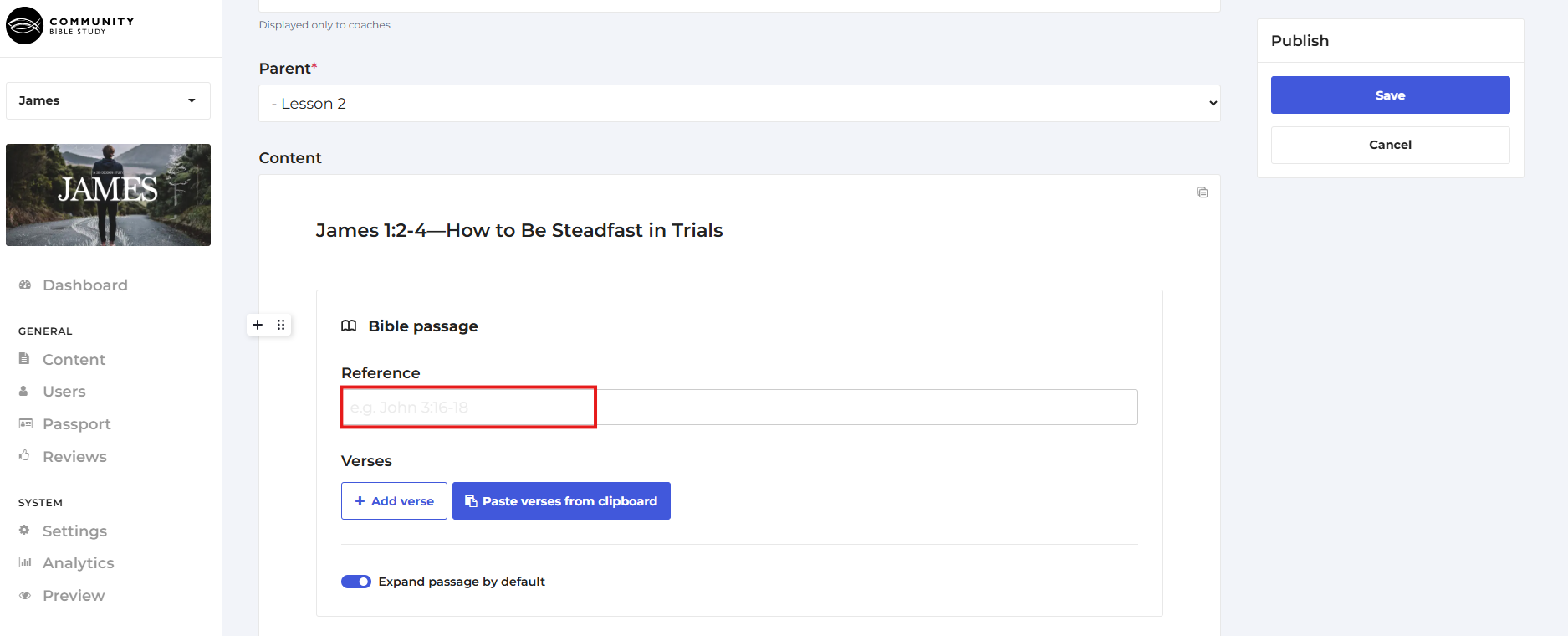
4. Type the verse reference for the passage into the “Reference” box.
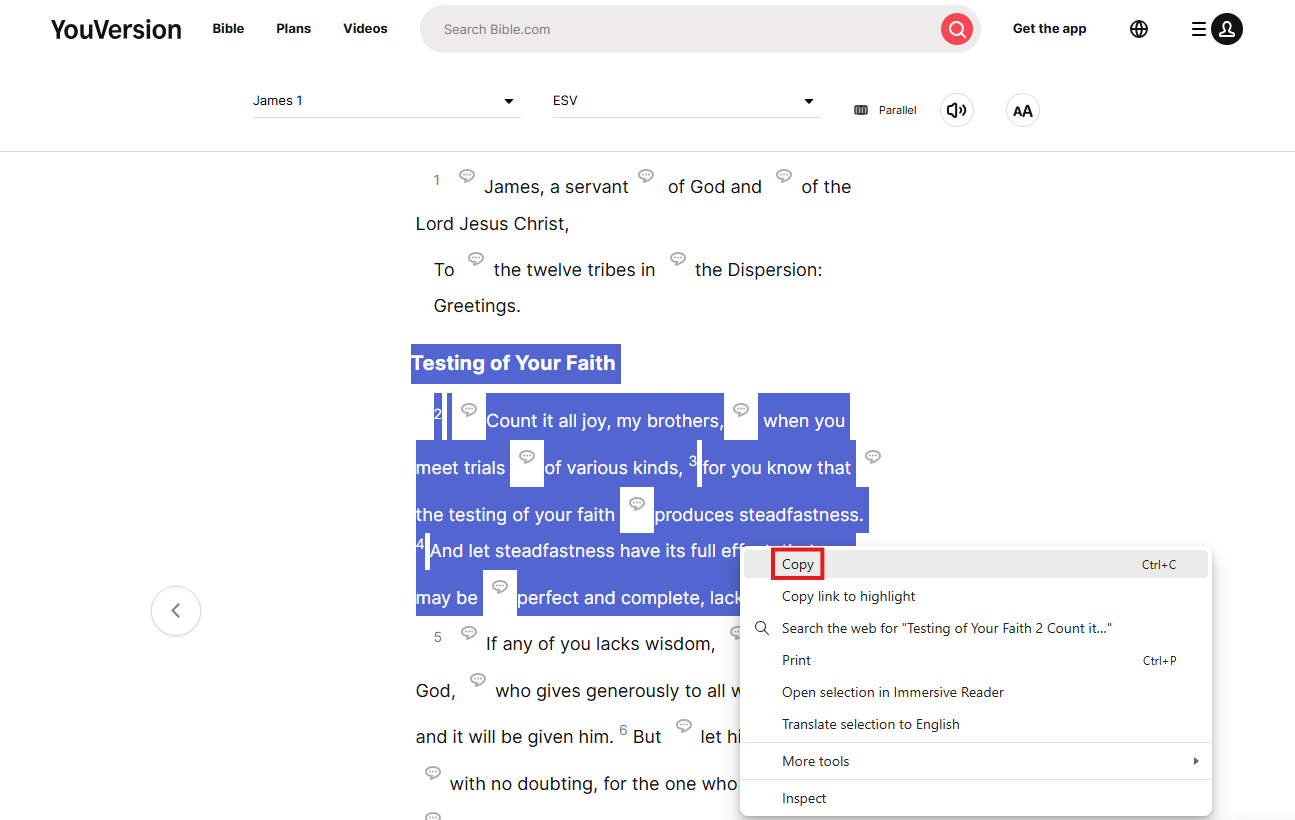
5. Go to YouVersion and look up the passage you want to add to the course.
Note: We have found that copying the text from YouVersion produces the best results when pasting the verses into the Bible Passage block. However, if YouVersion does not support the Bible translation or language you are wanting to use, any other Bible website will also work.
6. Highlight the verses you would like to add to the course, right click and click Copy, or press CTRL + C on your keyboard (Command + C on a Mac) to copy the text.
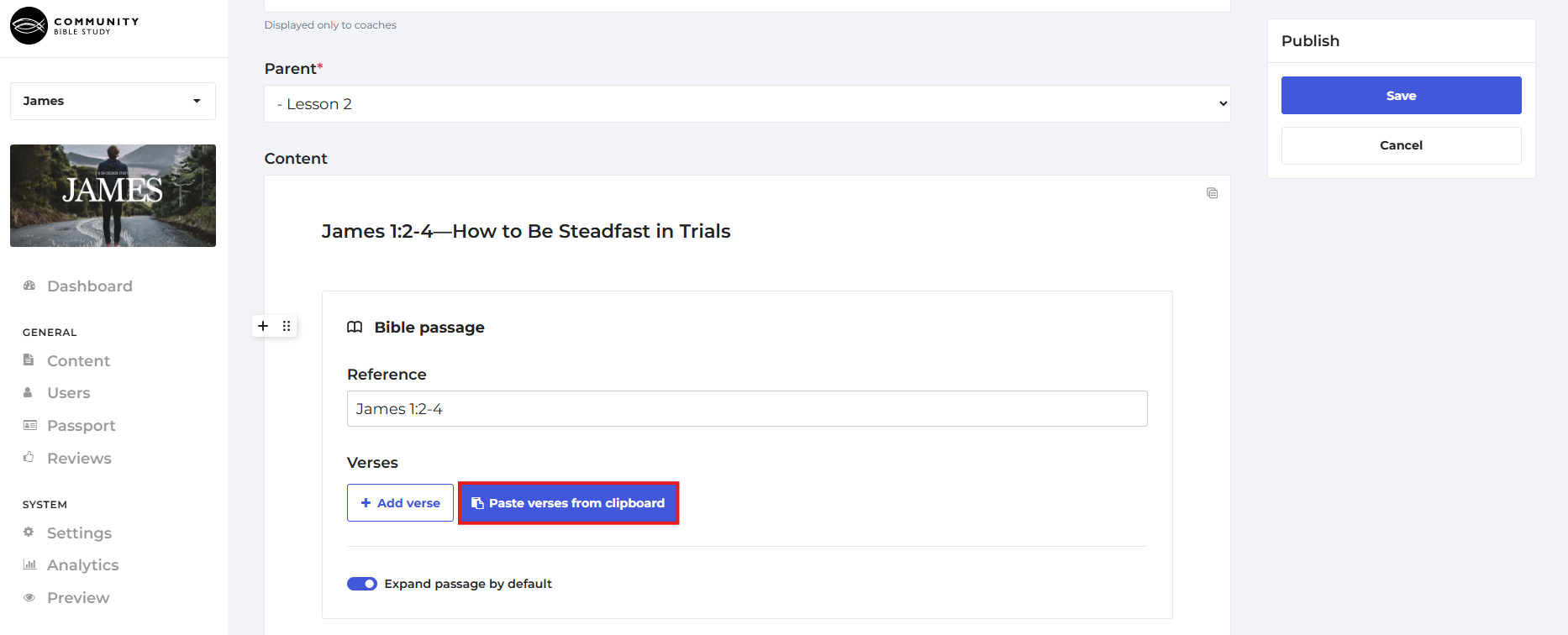
7. Go back to the CBS Connect platform and click Paste verses from clipboard on the Bible Passage block.
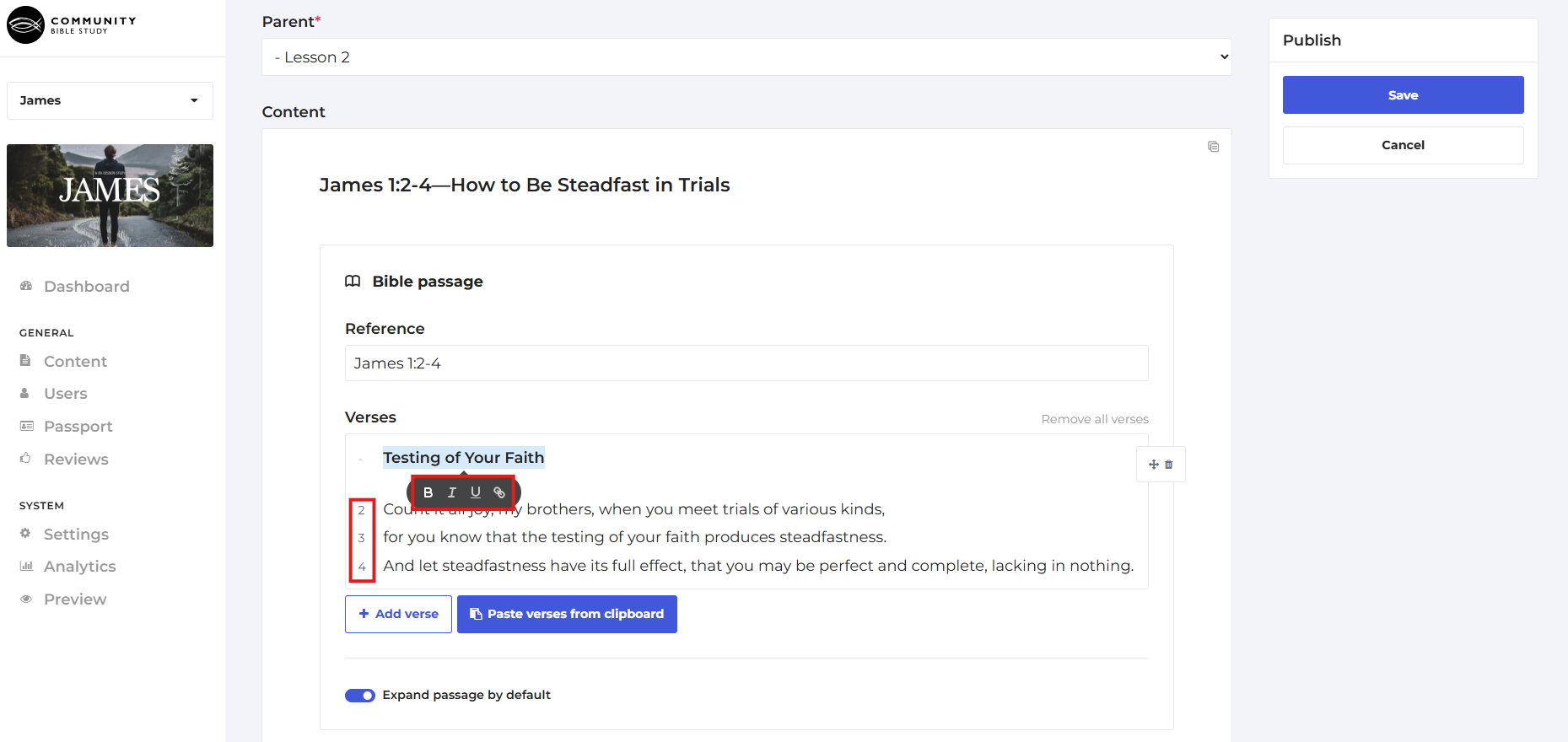
8. This will automatically paste the verses along with the verse numbers into the block. Ensure the verse numbers are correct on the left hand side. If any of the numbers are incorrect, you can click on a number to edit it. You can also highlight parts of the text to format it as needed.
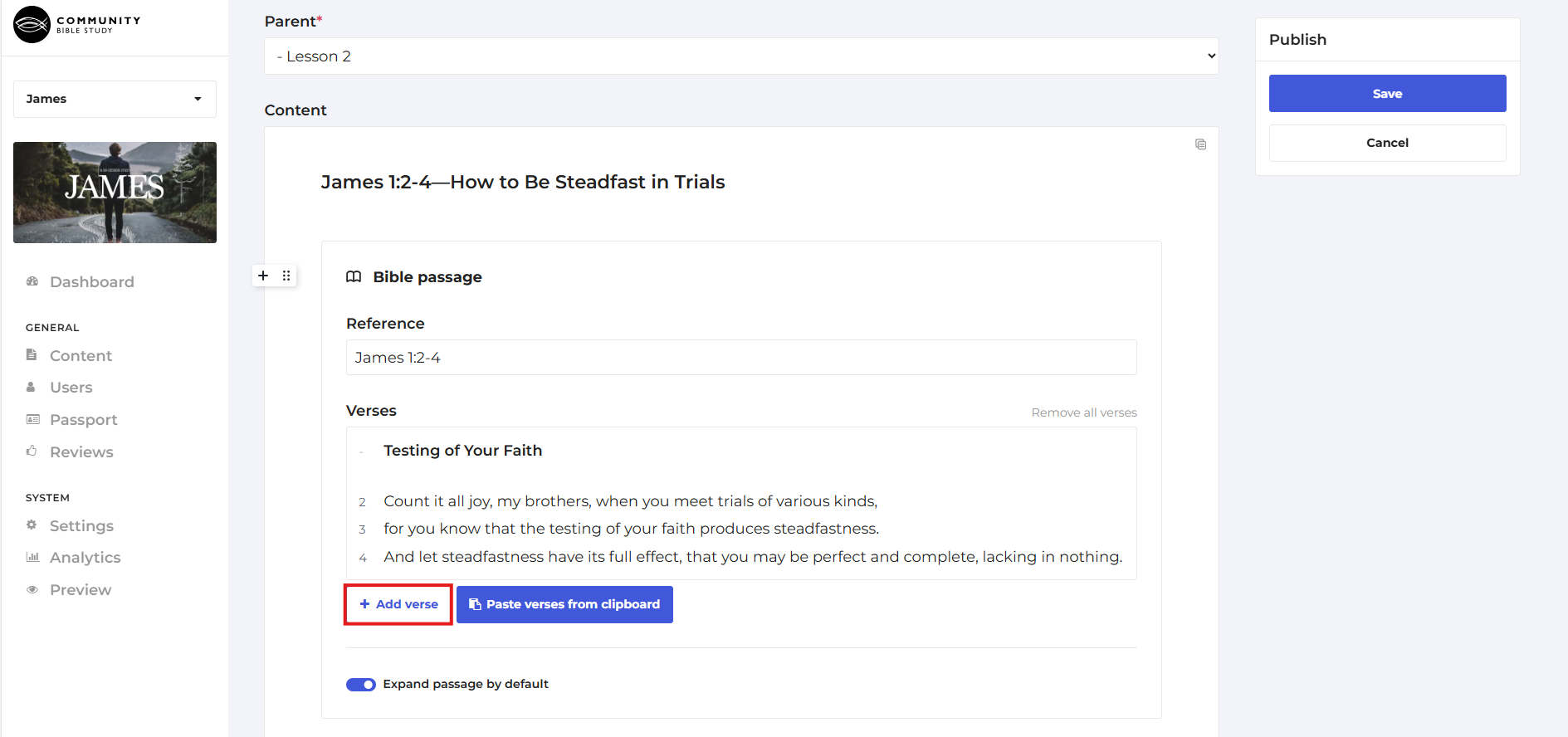
9. If you would like to add an additional verse to the passage, click Add Verse at the bottom.
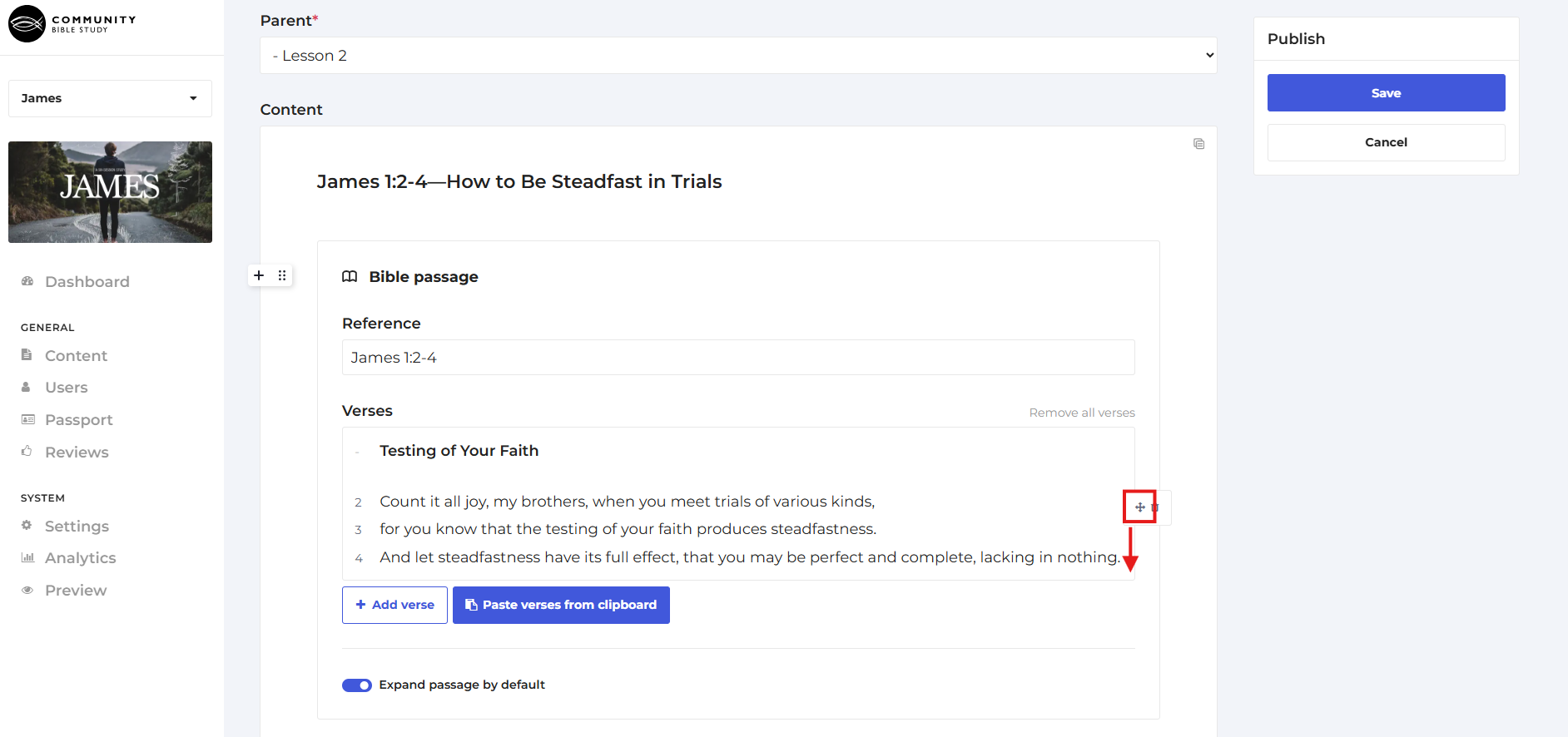
10. You can reposition verses by hovering over the verse you want to move, clicking the Move button to the right of the verse, and dragging the it to the spot you would like to move it to.
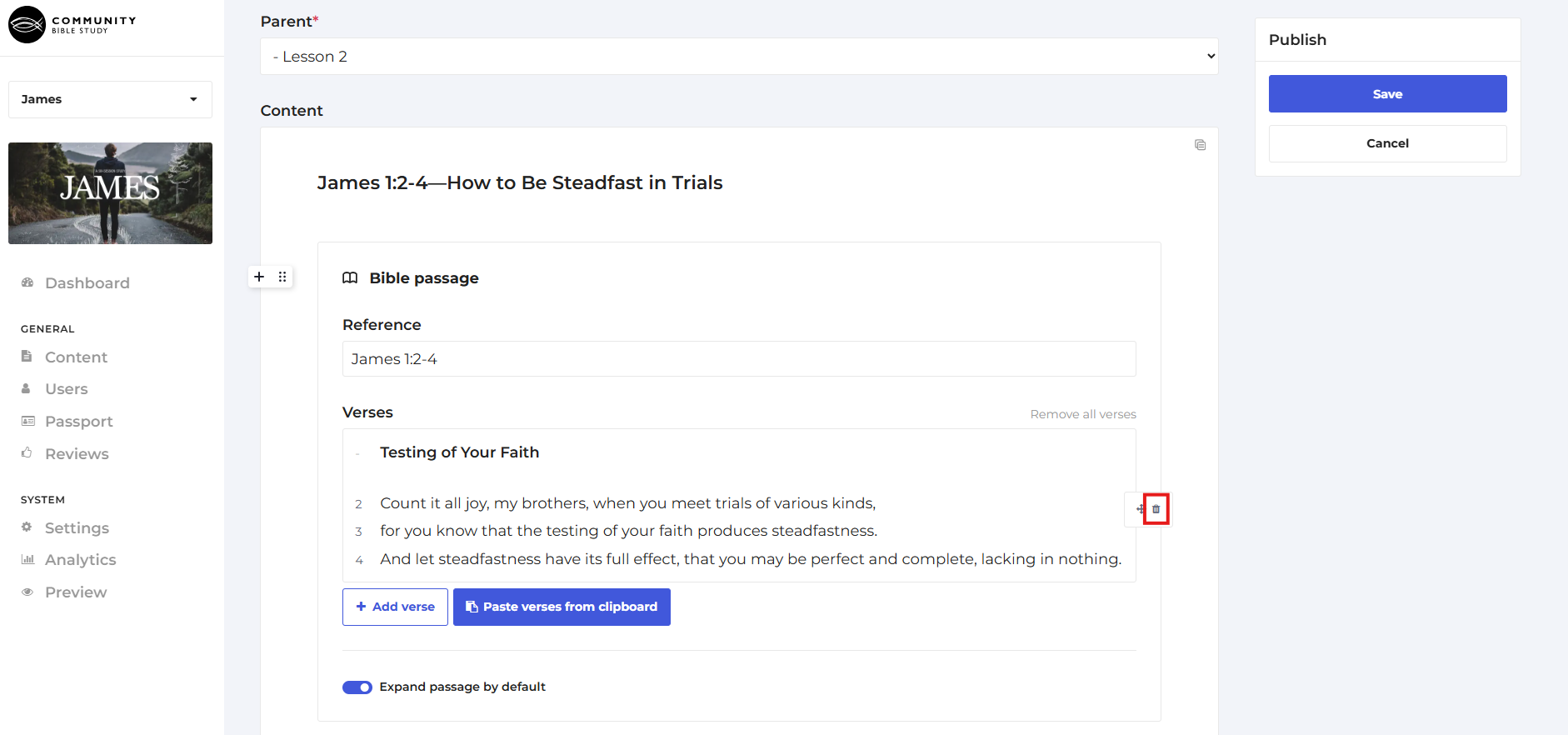
11. If you need to delete a verse, hover over the verse you want to delete and click the Delete button to the right of the verse.
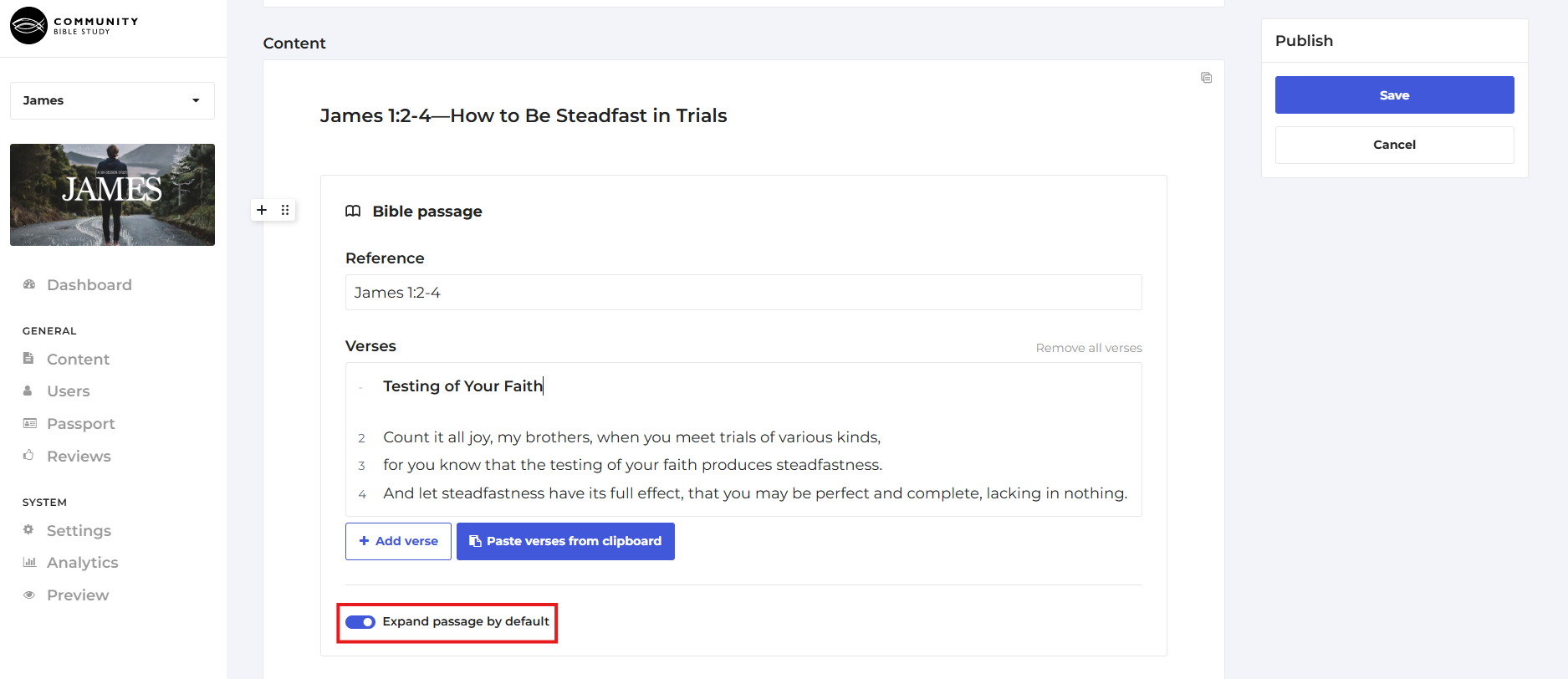
12. You can select whether you would like the passage to open or closed by default when participants access the slide.
13. Once the passage looks correct, click the save button to add the passage to the slide.
If you have any questions or need any help using this feature, please feel free to send an email to answers@communitybiblestudy.org.