
To Add a Language to the Platform:
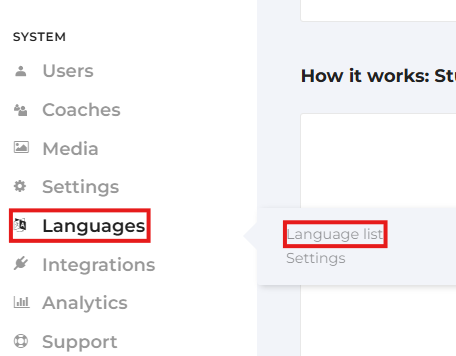
1. Go to your Superadmin dashboard and click Language list under the System category in the left sidebar.
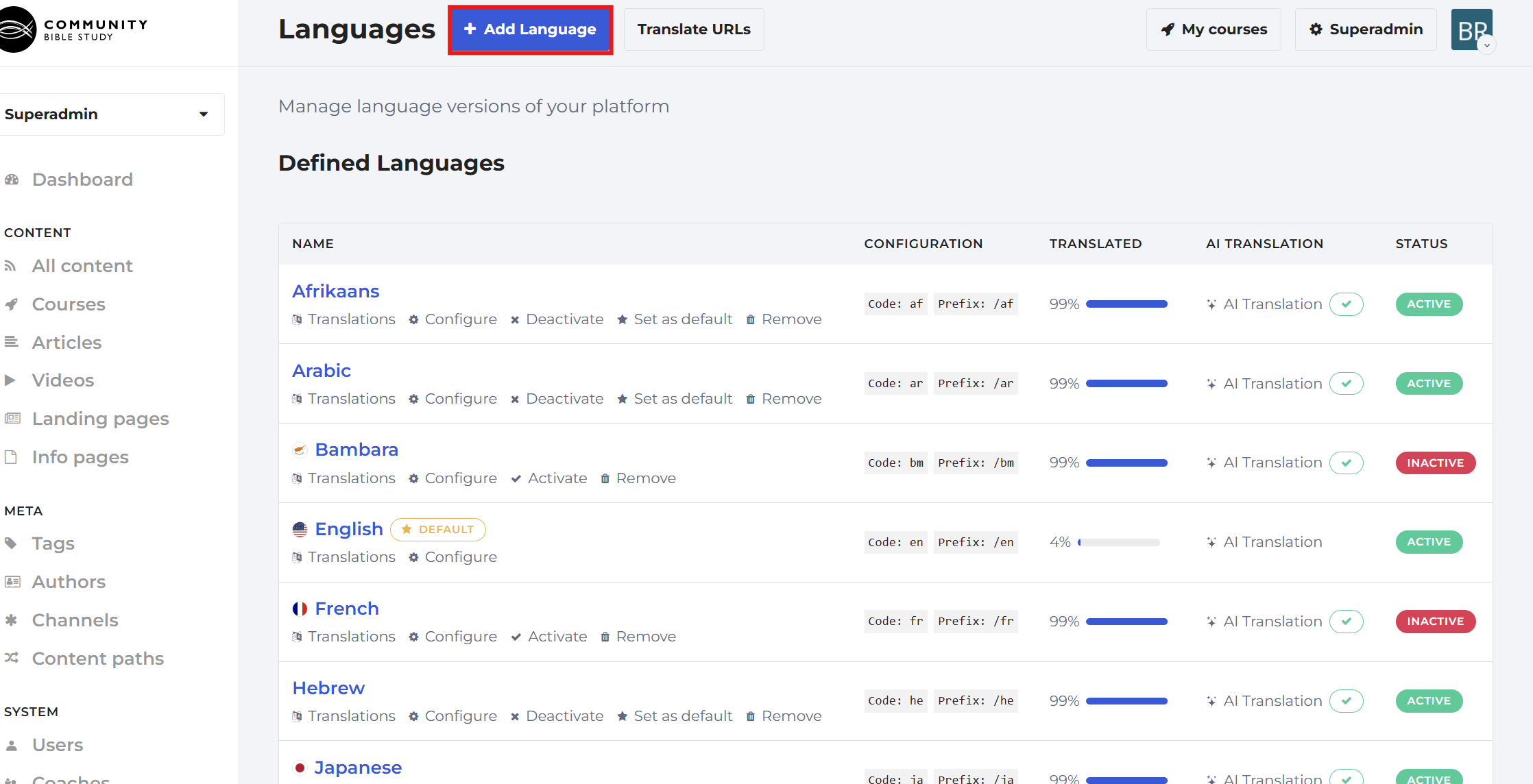
2. Click the blue Add Language button at the top of the Languages page.
3. On the Add Language page, you will enter the language details and click Save when you are done.
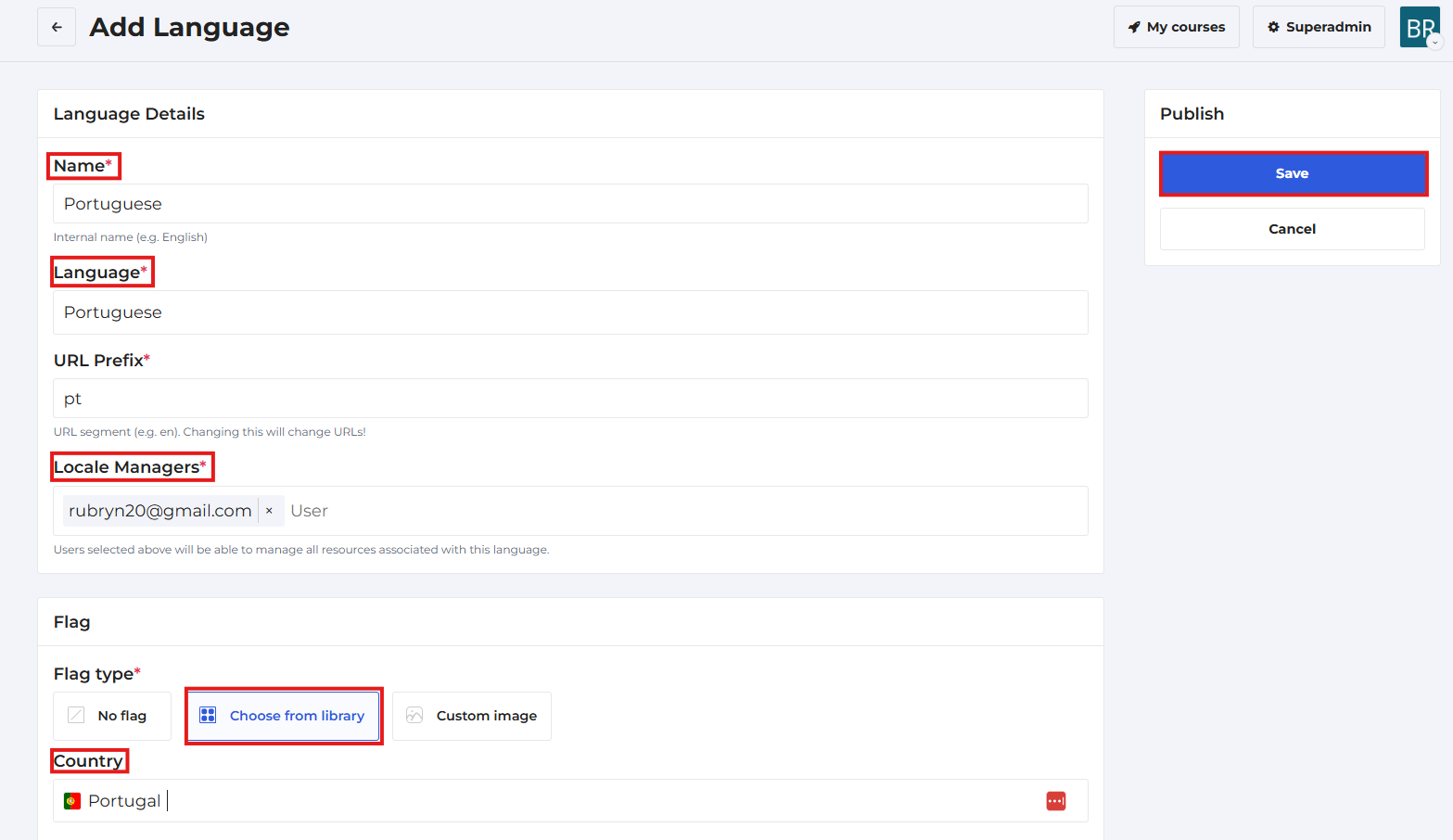 Note: You can assign a Locale Manager to help you review and edit each language. You can also select a flag from the library to display in the language selection menu that the user will see on the homepage. All these details can be edited later in the Configure option if needed.
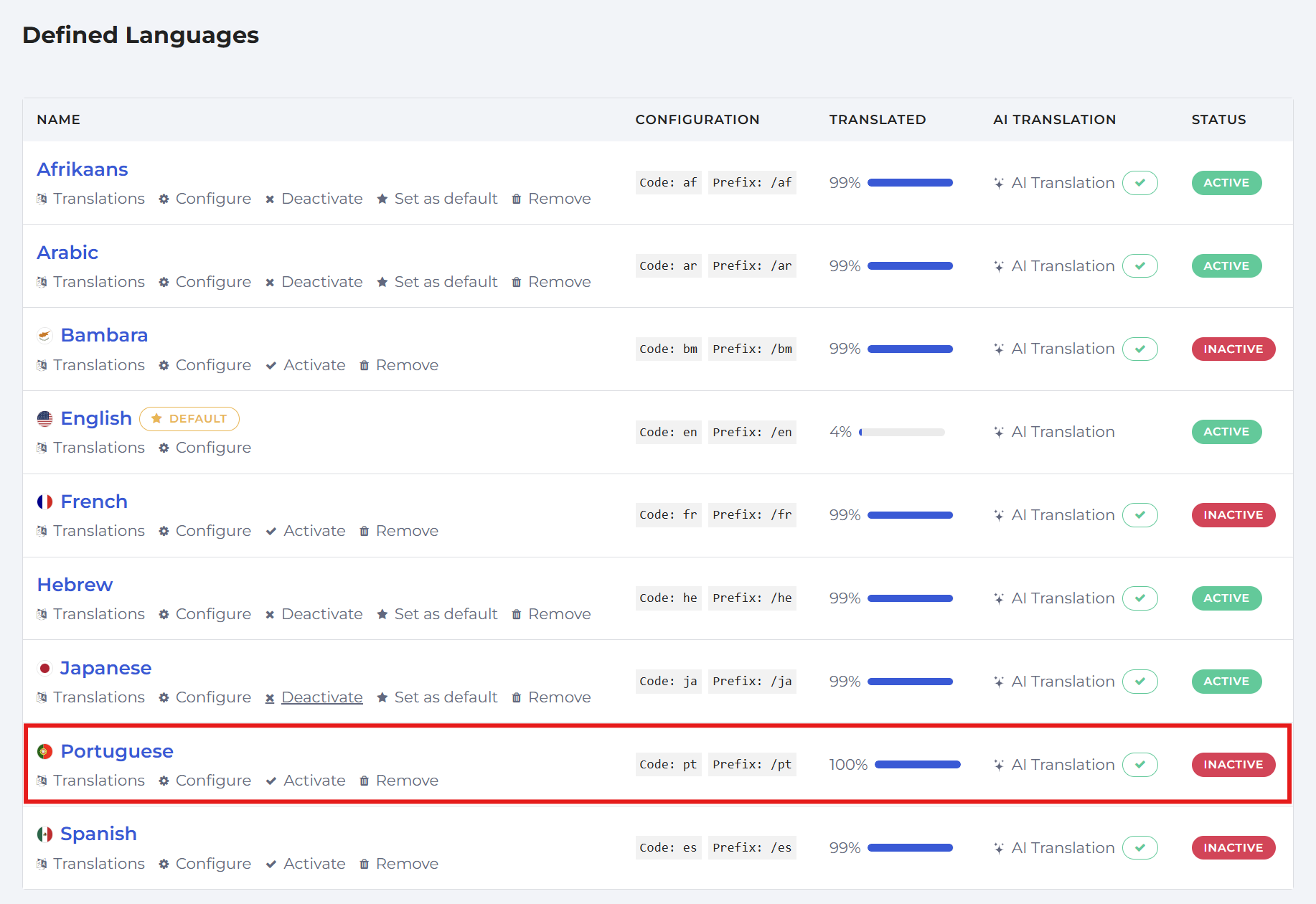
4.Go back to the Language list page and you will see the newly added language as an option.
 See “Translating an Added Language” and “Reviewing and Editing Language Translations” articles.